[av_section min_height=” min_height_px=’500px’ padding=’default’ shadow=’no-shadow’ bottom_border=’no-border-styling’ bottom_border_diagonal_color=’#333333′ bottom_border_diagonal_direction=’scroll’ bottom_border_style=’scroll’ scroll_down=” id=” color=’main_color’ custom_bg=” src=” attach=’scroll’ position=’top left’ repeat=’no-repeat’ video=” video_ratio=’16:9′ video_mobile_disabled=” overlay_enable=” overlay_opacity=’0.5′ overlay_color=” overlay_pattern=” overlay_custom_pattern=” av_element_hidden_in_editor=’0′]
[av_one_full first min_height=” vertical_alignment=” space=” custom_margin=” margin=’0px’ padding=’0px’ border=” border_color=” radius=’0px’ background_color=” src=” background_position=’top left’ background_repeat=’no-repeat’ animation=” mobile_display=”]
[av_heading tag=’h2′ padding=’0′ heading=’How To Submit Ticket?’ color=” style=’blockquote modern-quote modern-centered’ custom_font=” size=” subheading_active=’subheading_below’ subheading_size=’15’ custom_class=” admin_preview_bg=”]
This is a step by step instruction to submit your request to Datum. Please follow through all the steps.
[/av_heading]
[/av_one_full][av_one_fifth first min_height=” vertical_alignment=” space=” custom_margin=” margin=’0px’ padding=’0px’ border=” border_color=” radius=’0px’ background_color=” src=” background_position=’top left’ background_repeat=’no-repeat’ animation=” mobile_display=”]
[/av_one_fifth][av_three_fifth min_height=” vertical_alignment=” space=” custom_margin=” margin=’0px’ padding=’0px’ border=” border_color=” radius=’0px’ background_color=” src=” background_position=’top left’ background_repeat=’no-repeat’ animation=” mobile_display=”]
[av_textblock size=” font_color=” color=” admin_preview_bg=”]
Step 1: Log In or Register.
- If you’re an existing user, you may proceed to log in form.
- If you’re a new user, you will need to fill in the registration form.
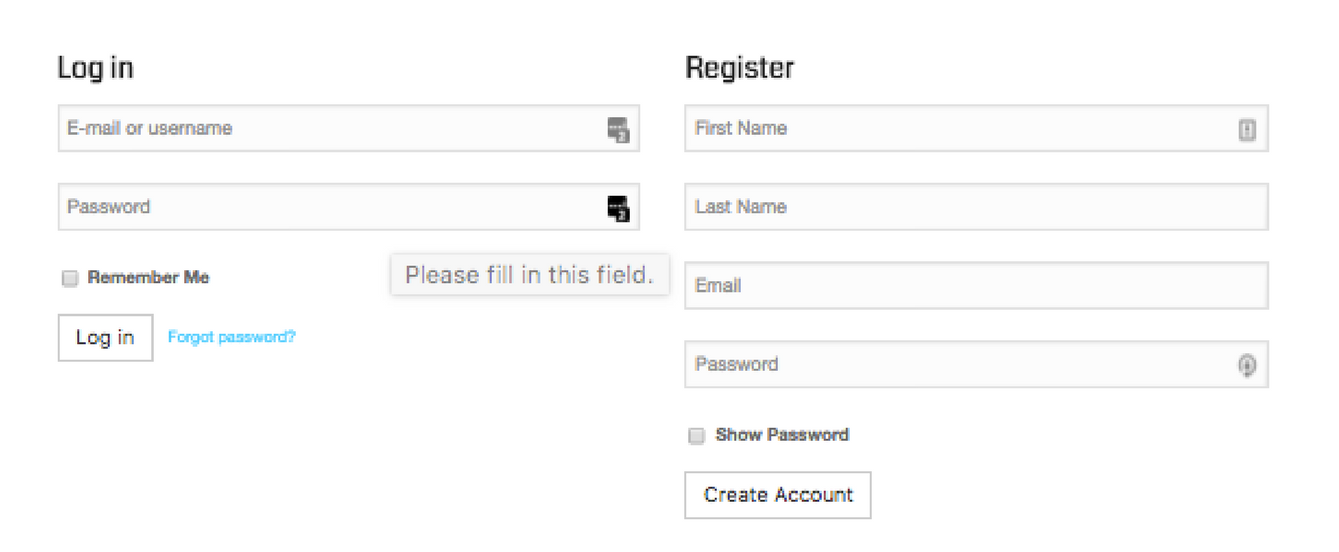
Figure 1.0: Log In/Registration Page
Step 2: Fill in the form.
You’ll be required to first state the subject. Then select the product that you need assistance with and choose the department. Later, fill in the details in the description box. Lastly, you may upload an attachment (if necessary), and then hit the ‘Submit Ticket’ button once everything is completed.
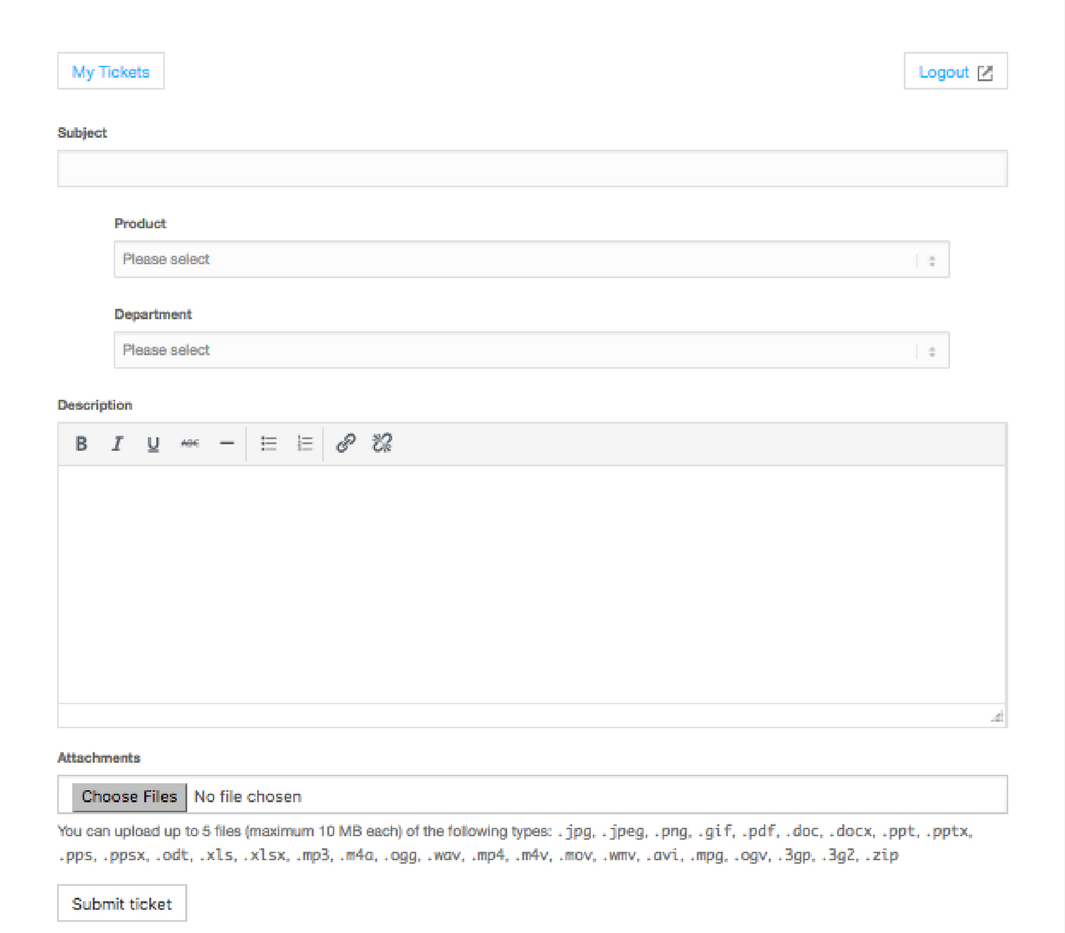
Figure 1.1: Submit Ticket Page
Step 3: Check your Email.
Email will be sent to you shortly. Make sure to only click on the link given and DO NOT REPLY TO THE EMAIL.
[/av_textblock]
[/av_three_fifth][av_one_fifth min_height=” vertical_alignment=” space=” custom_margin=” margin=’0px’ padding=’0px’ border=” border_color=” radius=’0px’ background_color=” src=” background_position=’top left’ background_repeat=’no-repeat’ animation=” mobile_display=”]
[/av_one_fifth][/av_section]